Clients (translation agencies) or colleagues will often supply TMs to be used with certain projects. In Trados, the two most commonly used formats are TMX and TXT files.
The video below shows how to import TMX or TXT files into your TMs.
Showing posts with label trados 2007. Show all posts
Showing posts with label trados 2007. Show all posts
Saturday, September 3, 2011
Sunday, August 14, 2011
Setting Up Trados TMs to Allow Multiple Translations
Why would a translator benefit from setting up a TM to allow multiple translations? Consider the following scenario.
You're translating a large document into Spanish which includes dozens of repetitions of the following question:
There are two possible translations here, dictated by gender:
Having a TM that doesn't allow multiple translations would mean either stopping each time the segment comes up and manually making the change, or fixing the resulting document after the translation has been completed, both tedious and unnecessary actions. If you use a Translate to Fuzzy command or pre-translate your document, a single translation would mean that the errors introduced need to be fixed later, increasing editing time.
A better solution is setting up your TM to allow multiple translations, so that one source segment has two (or more) translations. Then it's just a matter of choosing the one you want to use.
The steps to do this are detailed below.


You're translating a large document into Spanish which includes dozens of repetitions of the following question:
How many are there?
There are two possible translations here, dictated by gender:
¿Cuántas hay? and ¿Cuántos hay?
Having a TM that doesn't allow multiple translations would mean either stopping each time the segment comes up and manually making the change, or fixing the resulting document after the translation has been completed, both tedious and unnecessary actions. If you use a Translate to Fuzzy command or pre-translate your document, a single translation would mean that the errors introduced need to be fixed later, increasing editing time.
A better solution is setting up your TM to allow multiple translations, so that one source segment has two (or more) translations. Then it's just a matter of choosing the one you want to use.
The steps to do this are detailed below.


Wednesday, August 3, 2011
Exporting Terms from a Multiterm Termbase
These videos show how to export only the source and target terms from a Multiterm Termbase into a txt file that can then be opened in Excel.
Multiterm 2009 SP4 was used for this process.Exporting Terms in Multiterm
Opening the exported terms in Excel
Importing Excel Glossaries into Multiterm to Use in SDL Trados Studio
December 2015 Update: Read Paul Filkin's detailed explanation about the Glossary Converter, a great Open Exchange app that simplifies glossary management in Studio. For the original text of this post, please keep reading below.
Although you can enter terms manually in Multiterm, a more efficient way of populating a termbase is importing and already existing glossary.
Multiterm offers several import options. In this post we will see how to import glossaries from an Excel file.
MS Excel: Preparing your bilingual glossaries
Although you can enter terms manually in Multiterm, a more efficient way of populating a termbase is importing and already existing glossary.
Multiterm offers several import options. In this post we will see how to import glossaries from an Excel file.
MS Excel: Preparing your bilingual glossaries
Start with a two-column Excel file. To make things easier, make sure the first row in your Excel file includes your language names.

Multiterm Convert: Convert Excel file to be imported into Multiterm
After your Excel file is ready, the next step is converting it to a format that Multiterm can import. To do this, you will need to use SDL Multiterm Convert, which you will find in the same Program group as SDL Multiterm Desktop.
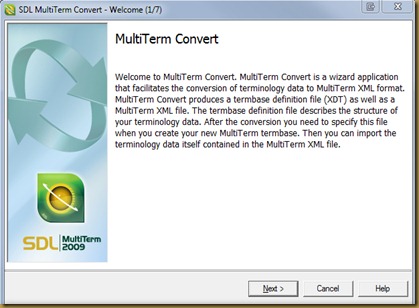
After clicking Next, you will see this screen:

After clicking Next, you will see this screen:

Leave the options as they are and click Next. In the next screen, choose Microsoft Excel format.

Clicking next will open up the screen where you will select the Excel file you want to convert. Click the Browse button next to the Input file field. Find your Excel file and select it. This will populate all 4 fields. Note the location of the Output file (by default the same location where your Excel file is stored).

Click Next.
Now, this is the critical step. On the next screen, choose each language name on the left, select Index filed on the right, and under Index field, select the same language.
See a quick video below:
Click Next.
Don't make any other changes in the following screens, just click Next until you're done.
This screen shows that the conversion was successful and tells you how many term entries were converted.

Clicking on Next takes you to the last screen in the Multiterm Convert process. Click Finish. This will close Multiterm Convert.
Multiterm Desktop: Importing your converted glossaries
Now that the Excel file has been converted, we're ready to import it into Multiterm.
Go to SDL Multiterm Desktop and open the termbase you want to import your terms into.
With the termbase open, click the Catalog tab on the bottom left of your screen:
Go to SDL Multiterm Desktop and open the termbase you want to import your terms into.
With the termbase open, click the Catalog tab on the bottom left of your screen:

The Catalog View will show you the name of the termbase and several options. Click on Import.

Right click on Default import definition, on the right-hand panel:

This will bring up a context menu. Select Process.
In the screen that opens, click Browse and select the Output file created by Multiterm Convert. Check Fast import, and click Next.

Click Next again. This starts the Import process. When the file has been imported, you will see a screen like this.

Click Next and then Finish to exit the Wizard.

You can repeat the Import process to add terms from other converted Excel glossaries to the same termbase.
Now your termbase is ready to be used in Studio.
To learn more, read Using Multiterm Termbases in SDL Trados Studio.


Subscribe to:
Posts (Atom)