Showing posts sorted by relevance for query regular expressions for translators. Sort by date Show all posts

Wednesday, October 23, 2019

Regular Expressions for Translators: Escaping Metacharacters


If you’ve ever attempted to use a question mark or an asterisk in SDL Trados Studio’s display filter, you may have been surprised to get an error message that looks like this:


In fact, several of the characters below will trigger this message, while others will simply return unwanted results. 


You can test this by creating a simple Word file that contains these characters, opening it in Studio and attempting to filter using each character. I’ve indicated the results you’ll get below.


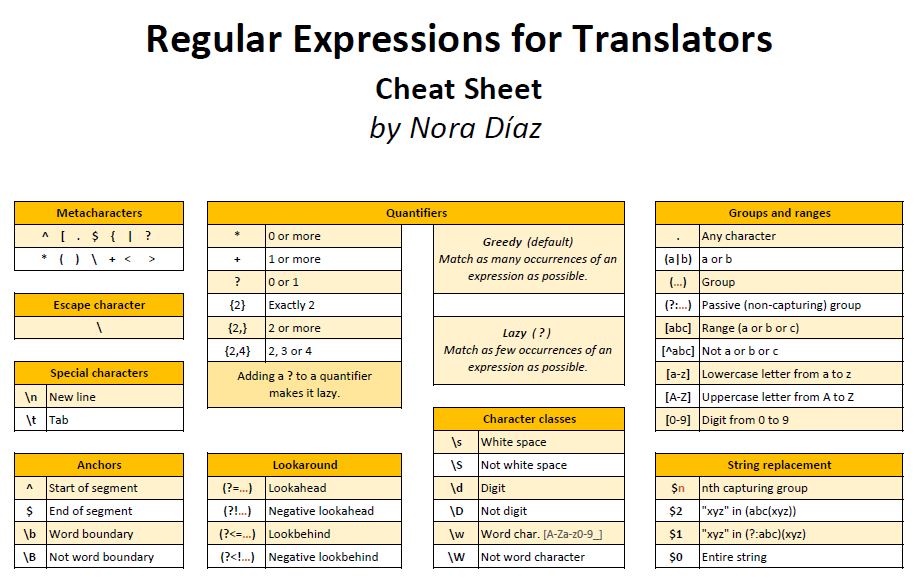
Why is this? Because the display filter has regular expressions enabled by default, and all of these characters have special meanings when creating regular expressions. To learn more about the meaning of each character, have a look at my Regular Expressions for Translators Cheat Sheet.


So, does this mean you can’t use any of these characters in the display filter? Not exactly. All you need to do is “escape” each of these characters whenever you want them to be matched literally. You actually do this by using one of those metacharacters: the backslash.


The screenshot below shows that after escaping the question mark character in the display filter, there is no error message and the filter is properly applied, displaying only the segments that contain a question mark.


Metacharacters that don’t need to be escaped

As you may have inferred from the test above, there are three metacharacters that don’t really need to be escaped: {, < and >. This is because their special meaning only applies when they are used in very specific ways. However, while it may be important for a computer programmer writing code to avoid escaping metacharacters when it's not required, for a linguist looking to quickly filter content while translating, editing or proofreading this is not so critical, so if it’s hard to remember which metacharacters to escape and which not to, simply escape them all.


Final notes 
  • SDL Trados Studio uses the .NET regex flavor
  • While regular expressions are the default for the regular display filter in SDL Trados Studio, they are optional in the Advanced Display Filter and in the Community Advanced Display Filter
  • Escape sequences can be used in Find operations but not in Replace patterns 
  • To match a literal backslash, use another backslash to escape it: \\


 ¡Pregunta por los precios especiales de SDL Trados Studio para México!


Thursday, October 24, 2019

Regular Expressions for Translators: Four Applications in SDL Trados Studio

In regular expressions (regex), a new line break (or soft return) and a tab are represented with the following special characters:


In a program like SDL Trados Studio, regular expressions can be used to:

                                        1) Filter on segments that match a certain regex

                                        2) Find text that matches a regex

                                        3) Create verification settings

                                        4) Add new segmentation rules to a TM

Let's use the new line and tab special characters to look at a few examples of these applications.

1) Filtering on segments that contain a new line break

This is achieved by using the regular Display Filter (found in the Review tab), which has regex enabled by default, or the Advanced Display Filter, where regular expressions must be enabled by checking a box.

Tip: For even more powerful filtering, download the Community Advanced Display Filter from the SDL app store.

So, if we have a document that looks like this:


Entering the "new line" regex character in the Display Filter search box produces the following filtered results:


2) Finding a tab

To do this, the regular expressions checkbox in the Find dialog box must be checked. This example shows the results of the search.


Once we learn that we can use regex in the Find dialog box, a natural question is whether the same can be done in a replace operation. The answer is a bit disappointing: while the Find field accepts all kinds of regular expressions, the regex syntax accepted by the Replace field is very limited, so, in short, no, you can't do the same in the replace field, that is, you can't replace a tab character with a new line character using regex, for example. In fact, if you enter "\n" in the replace field, that will be interpreted literally as "a backslash followed by an n", and that´s exactly what will be used in the replacement.

3) Creating verification settings

SDL Trados Studio's out-of-the-box verification options include the ability to add regex patterns to flag potential errors. In the example below, a rule has been created to tell Studio that when a new line character is found in the source, it should also be present in the target.


With the rule in place, once the verification is run, the program will identify any instances where there is a new line character in the source but not in the target.


4) Adding new segmentation rules to a TM

There are some cases where creating new pattern-based segmentation rules is desirable. A new segmentation rule for line breaks (soft returns), for example, would look like this (there's a dot in the "After break" section, even though it's hard to see):


After the rule has been added to the TM, files that are added to the project will be segmented at every line break, in addition to the usual segmentation. So, for our example above, if we remove the file from the project and add it back after the rule has been added, the new segmentation would look like this:


Final words
While the examples in this article use only the tab and new line characters, all kinds of complex regex patterns can be used in the four features that make use of regular expressions in Studio (display filter, search, verification and segmentation), and while linguists don't need to be computer programmers, investing some time to learn the basics of regex will help them save time and work more efficiently.


 ¡Pregunta por los precios especiales de SDL Trados Studio para México!


Sunday, November 10, 2019

Regular Expressions for Translators: Quantifiers

While character classes allow us to match a variety of characters, quantifiers bring more power to regular expressions by allowing us to specify how many times those characters should be matched.


              Download Nora’s Regular Expressions for Translators Cheat Sheet


Let's add each quantifier to a digit (\d) regex and look at the different results we get in a Find operation in SDL Trados Studio.


Regex: \d

The match for this regex is a single digit, as shown below.


Regex: \d*

Adding the * (zero or more) quantifier to \d gives us a different match: a series of consecutive digits.


However, in SDL Trados Studio, this regex will also match text that is not a digit. Clicking "Find Next" in the example above, causes this regex to match the comma.


Regex: \d+

Adding the + (one or more) quantifier to \d means that the match must have at least one digit.


Clicking "Find Next" here will skip the comma and match the next number group.


Note that this simple regex will match a group of numbers even if they are part of a string containing other characters. Have a look at this example, where I've added the letters AFG to the number 879.


Regex: \d?

Adding the ? (zero or one) quantifier to \d means that the match will be either zero digits or one digit.


Clicking "Find Next" will match each individual character in the segment, including the comma and letters.


Regex: \d{4}

A single number inside curly brackets is a quantifier that indicates that the preceding regex must be matched that exact number of times.


Clicking "Find Next" matches the next four-digit sequence in the segment.


Regex: \d{4,}

A number followed by a comma inside curly brackets indicates that the preceding regex must be matched that exact number of times, or more.


Clicking "Find Next" gives us the following result.


Regex: \d{3,5}

Two numbers separated by a comma (no space) inside curly brackets indicates a range of times that the preceding regex must be matched. In this example, it will be 3, 4 or 5 times.

Running a Find operation with this regex in the active segment below matches the first 3-digit group it finds.


Clicking "Find Next" two more times gives the following results.


Greedy or Lazy?

Quantifiers are greedy by default, which means that they will match as many occurrences of the regex pattern as possible. Consider the example below.

Regex: .+-

The dot character is a wildcard for any character, so this regex will match any character one or more times, as many times as possible (greedy) followed by a dash.

In the active segment below, it looks like there are three instances of groups of characters (numbers) followed by a dash: 614-, 597- and 7855-, but in fact, the first two dashes are interpreted as "any character" due to the use of the greedy quantifier +, which keeps matching "any character" as many times as possible until the last dash is found.


Making the quantifier lazy by adding a ? will cause the expression to recognize the first dash as a dash and not as any character, which results in a different match:


Each of the quantifiers above can be made lazy by adding a ? to it, which will result in the expression being matched as few times as possible.

Finally, while most of the examples above are based on digits, quantifiers can be used with any other regular expressions.


 ¡Pregunta por los precios especiales de SDL Trados Studio para México!


Tuesday, November 12, 2019

Regular Expressions for Translators: Groups and Ranges

In this article, we'll talk about groups and ranges in regular expressions and how they can be used by translators in CAT Tools such as SDL Trados Studio. 


Let's have a look at these regex components and some of their applications. 


The previous post about quantifiers ends with a brief introduction of the function of the dot in regular expressions: a wildcard that represents any character.


Regex example: .*?,

Using a single dot will match any one character. Combining the dot with a quantifier will match more than one. This regex will match all the text up to a comma, as shown below:


A word of caution about the dot in regex
While it may seem tempting to use the dot wildcard frequently, one must be aware of potential undesired results.

For example, imagine that we want to find all the text that comes between straight quotation marks so we can later replace the straight quotation marks with curly quotation marks. Using a regex such as ".+" (a straight quotation mark followed by anything, one or more times, followed by a straight quotation mark) would seem like an easy solution, but look at what can happen below:


Instead of getting two matches: "I will see you there" and "don't be late", we get a single match, from the very first quotation mark in the segment to the very last one.

These undesired results are not always evident when using a regular expression in the SDL Trados Studio display filter, for example, so it's always a good idea to test the regex in a regex tester such as regexstorm.net/tester, which I will use for the examples in this article.

Bonus tip: A better regex to find each separate instance of text inside straight quotes is "[^"]*".


Regex example: col(o|ou)r

In regular expressions, the vertical bar or pipe character | indicates alternation. Using the pipe tells the regex to match everything to the left or everything to the right of the pipe, as shown here:


Here, the strings that match the regex colo|our are "colo" and "our". If we want to match "color" and "colour" instead, we need to use parentheses:


Look at the example below to see how alternation can be used to match any of the days of the week.


Now, you may notice that in this example, all the text to the left or right of the pipe is matched, whether it's a whole word or not. If what we want to do is match whole words only, we can use parentheses to create a group and then apply word boundaries to the entire group.


I use this regex in a verification rule in SDL Trados Studio to alert me about segments where the day of the week is not present in the source but is present in the target:


Regex example: (\d+,)+

Parentheses are used to create groups in regular expressions. Look at this example:


Here, the regex \d+, is matched twice, once by "123," and once by "456,". If instead we want to include both instances in a single match, we need to add parentheses to the expression and then add the + quantifier to the group.


A group can also be a single character, as in the example below, where the ? quantifier (which means 0 or 1) is used to make the s character optional.


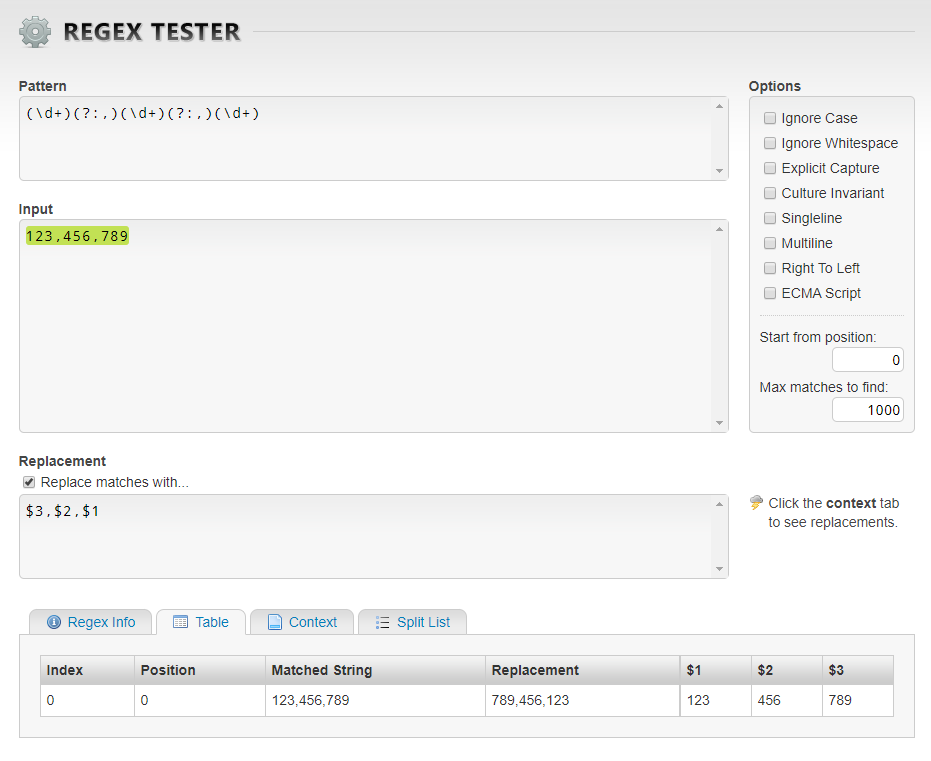
Lastly, groups have two purposes in regular expressions: to organize information and to capture the contents of the group. The captured information is "remembered" by the regex engine and can later be used for backreferences or substitutions.

Consider this example:


Here, the regex pattern has been organized into five groups, as shown in the table above, at the bottom of the regex tester window. Each group is assigned a consecutive number, so group 1 captures the character sequence 123, group 2 captures the first comma, group 3 captures the character sequence 456, group 4 captures the second comma and group 5 captures the character sequence 789.

In the replacement pattern, we can rearrange the groups by representing each group with the dollar sign followed by the group number. In our example, the groups have been rearranged to $5$2$3$4$1, resulting in the replacement string 789,456,123. 

Note: The same result can be achieved by using commas instead of the numbered groups $2 and $4, which would make the replacement pattern $5,$3,$1.


In addition to regular groups, there is a less commonly used type of group, called passive or non-capturing. The only difference between a non-capturing group and a regular group is that a non-capturing group organizes the information contained in the group, but doesn't capture it, that is, the information in the group is not assigned a group number. 

Let's use the same example we used before to understand how this works. Instead of having five regular groups, the commas will now be placed inside non-capturing groups by using the following syntax: (?:,).


While we still have 5 groups organizing the information, two of them are non-capturing, so the number of groups available for substitutions (replacement operations) is reduced to three, as shown in the table at the bottom of the regex tester window.

With this, the replacement pattern to achieve the same result as in the previous example is now $3,$2,$1.

While there aren't many use cases that come to mind for using non-capturing groups, they can come in handy when one wants to keep the number of capturing groups down to avoid having to keep track of too many group numbers.


Regex example: \d+[abz?*]

Placing characters inside square brackets means that any one of the characters in that set can be matched in that position, in no particular order. Have a look at this example:


Note that when used inside a character set range, metacharacters don't need escaping.


Regex example: \d+[^abz?*]

Adding a caret (^) inside the square brackets means that the characters included inside the square brackets should be excluded.


This is how the quotation mark regex mentioned earlier works:  "[^"]*" will be matched by a quotation mark followed by zero or more of any character except a quotation mark, followed by a quotation mark.


Lastly, let's have a look at these character ranges: lowercase letters, uppercase letters and digits.

Regex example: [A-Z][a-z]+

Lowercase and uppercase letters can be helpful when we need to specify case, for instance, when we want to find words that begin with a capital letter.


The sample regex here means one uppercase letter followed by one or more lowercase letters. But if this is the case, then how come the words "Añoranzas" and "Épicas" are not matched? The reason is that the ranges [A-Z] and [a-z] include only characters in the English alphabet. A solution to include other non-English letters is to add them to the character set:


While these examples use the full range of letters in the English alphabet, it's also possible to limit the range. In the example below, by limiting the uppercase range to "A-I", the words "The" and "La" are excluded from the matches.


Regex example: [0-9.,/"'-]+

While we could say that [0-9] is basically the same as \d, the [0-9] character range offers a bit more flexibility, as we can easily throw in a few other characters into the range to help us cover a variety of number formats.


In this example, the regex matches numbers with decimals, commas, fractions, and dashes, without having to come up with any complex expressions. While this may not be the most elegant solution for someone writing code for a program, it certainly can be a time-saver for a translator wanting to filter segments.

With this, we have come to the end of this article. If you'd like to have a copy of my cheat sheet, you can download it here:


Happy regexing!


 ¡Pregunta por los precios especiales de SDL Trados Studio para México!