Showing posts with label CAT tools. Show all posts

Wednesday, October 14, 2026

A Simple Bilingual Table from Your CAT Tool Files

Sometimes all you need is a simple, clean bilingual table. Tools like Trados Studio have options to export a file as a Word table (the bilingual review file), but that table carries additional information the reader may not need, such as segment IDs, status, match percentages and a comments column, plus a set of styles and macros that make the document fragile if someone edits it. Other tools have similar exports, each with its own layout. When the person on the other end only wants to read the source and the translation side by side, all of that can get in the way.

I recently had this specific need: an end client asked for bilingual tables for a project with dozens of files so their DTP team could double-check that everything was where it was supposed to be in the final files.
I didn't want to give them bilingual review files, so I created a small but powerful tool for this specific task. It is called Bilingual Table Maker, and this post explains what it does, how to use it and where you can get it.


What it does

Bilingual Table Maker takes the bilingual files from your CAT tool and produces a Word document with two columns: source text on the left, target text on the right. That is all the table contains. No IDs, no match values, no status. You can get either one row per segment or one row per paragraph.

It reads these formats:

•             SDLXLIFF (Trados Studio)

•             MXLIFF (Phrase)

•             MQXLIFF (memoQ)

•             XLIFF 1.2 and 2.0, including Wordfast TXLF

•             TMX

The app runs in your browser from a local file. There is nothing to install, you don't need to upload your documents anywhere, and the app doesn't use AI. The files are read and converted on your computer.

How to use it

1.         Open the app by double-clicking the HTML file* you will download. It opens in your default browser. Even though you can use any browser, I recommend you use Chrome or Edge, for a reason I'll explain below.

2.         Drag your bilingual files onto the page. You can drop one file or several, and they can be in different formats. Each file becomes its own Word document.


3.         Check the options. They apply to the whole batch:

–          Tags: remove them for clean text, or keep them as numbered markers so a reviewer can see where formatting sits.

–          Row numbers: none, a simple count, or the position of each segment in the original file, which helps when a reviewer refers to “row 37”.

–          Rows: one per segment or one per paragraph. This depends on file segmentation.

–          File name suffix: each document takes the name of the original plus a suffix. The default is *_bilingual, so Report.sdlxliff* becomes Report_bilingual.docx. You can change this to anything you want.

4.         Preview any file in the batch before you save it. The preview shows the table exactly as it will appear in Word. A dropdown in the Preview pane lets you pick a different document to preview if you're processing more than one.

5.        Save the documents. In Chrome and Edge, Save all to a folder writes every document to a folder you choose, with no download dialog. In any other browser, download them one by one. You can also download files individually in Chrome and Edge.

If the Keep bold, italic, underline, superscript and subscript option is on, that formatting carries over from the bilingual file. Fonts, sizes, colors and layout do not, since they are not part of the bilingual file. 

If you drop a new set of files, the list clears and the new set is processed.

If you ever need to review what each option does, the Help button at the top right explains every feature in detail.

A note on tags

Clean text is the default because that is what most readers want, but there is an option to number rows if needed. The markers are small and unobtrusive, and they match between source and target, so it is easy to see whether a tag went missing in the translation.

Where to get Bilingual Table Maker

Read more about the tool and get it here. You will get a downloadable HTML file. Save it to a folder on your computer and open it from there whenever you need to use it.


I truly hope you find this tool as useful as I have!


* An HTML file is the same kind of file a web page is made of. You can keep it in any folder on your computer, and when you double-click it, it opens in your browser like a web page would, except that it comes from your own disk rather than from the internet. It does not need an internet connection and it does not install anything. If you ever want to remove it, you delete the file.

Monday, January 13, 2025

Regex for Translators: Filtering Segments Starting with a Spanish Infinitive in Trados Studio


When working with CAT tools like Trados Studio, regex (regular expressions) can be a powerful ally. It allows you to identify specific patterns in text, saving time and effort. 

Today, let’s look at a simple but effective regex pattern designed to filter segments that start with a Spanish verb in the infinitive form. A specific use case would be a review job where there are inconsistencies, with some segments translated using the infinitive and others using the imperative form of the verb at the beginning of a segment. If we decide to change all the infinitives to imperatives, then it comes in handy to be able to filter and see only the segments that fit this criterion.

The Regex Pattern

Here is the regex pattern:

^\b(?:[a-záéíóúüñ]+ar|[a-záéíóúüñ]+er|[a-záéíóúüñ]+ir)\b

Let’s break it down:

  • ^: Ensures the pattern matches from the beginning of the segment.
  • \b: Marks a word boundary to capture entire words.
  • (?: ... ): Groups the options for non-capturing purposes, which means the parentheses won’t create a separate match group.
  • [a-záéíóúüñ]+: Matches the root of the verb, allowing for lowercase letters and accented vowels commonly found in Spanish.
  • ar|er|ir: Specifies the endings for verbs in the infinitive form.
  • \b: Ensures the word ends here.

What Does This Regex Do?

This regex identifies segments that start with verbs in the infinitive form. For example, it will match segments like:

  • "Vincular la información."
  • "Escribir un informe detallado."
  • "Responder de manera oportuna."

However, it will ignore other types of segments, such as:

  • "Vincule la información."
  • "Escriba un informe detallado."
  • "Responda de manera oportuna."

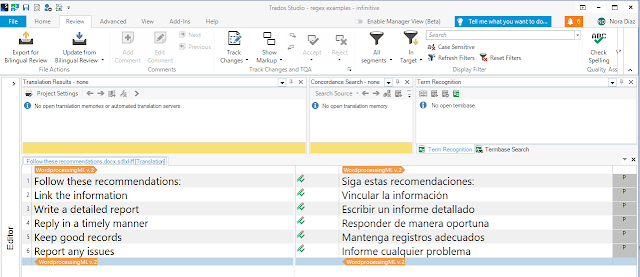
    Trados Studio file, no filtering


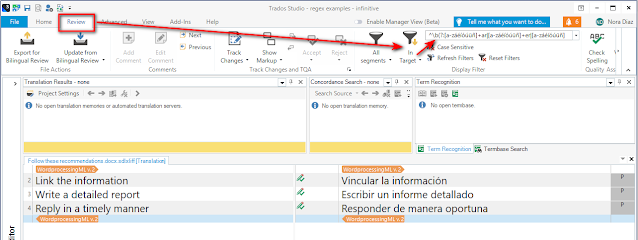
    Trados Studio file, regex-based filtering

    A word of warning: The regex doesn't actually match "infinitive verbs", but actually words that end in -ar, -er, or -ir, which is the structure of infinitive verbs in Spanish. This means that the regex will also match other words with the same structure that are not verbs, such as ayer, tapir, or hogar. 

Why Is This Useful for Translators?

As translators, we often need to apply specific rules or filters to certain types of text. In the case of Spanish, infinitives are frequently used for:

  • Instructional text (e.g., in manuals or guides): "Llenar el formulario."
  • Headings or titles: "Comprar boletos."
  • General-purpose commands: "Configurar el dispositivo."

However, some clients may prefer the imperative form, and we may find ourselves in a situation where we need to identify segments where an edit is needed.

By using this regex in Trados Studio, or any other CAT tool that supports regex, you can quickly locate and isolate these segments for editing, consistent formatting, terminology application, or quality assurance checks.

How to Use the Regex in Trados Studio

  1. Open your document in Trados Studio.
  2. Go to the "Review" tab.
  3. Paste the regex into the filter field*, making sure you have Source or Target selected, as appropriate.
  4. Apply the filter, and the tool will display only the segments starting with an infinitive.
This approach is not only efficient but also ensures consistency in handling these segments throughout your translation project.

*The regular filter in Trados Studio uses regex by default. To use regex in the Advanced Display Filter, make sure to check the "Use regex" checkbox.


Leveraging GenAI for Regex

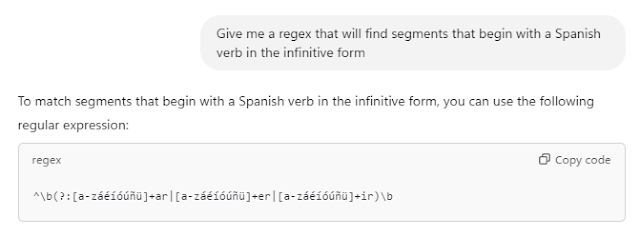
Does writing a regex look too complicated? No need to worry. With GenAI, getting a regex like the one above is as simple as going to ChatGPT (or your chatbot of choice) and saying "Give me a regex that will find segments that begin with a Spanish verb in the infinitive form".

While learning regex continues to be a valuable skill for a translator, being able to describe the pattern you need to match can be just as useful when using a GenAI tool.

ChatGPT can help you write regexes


Learn More

Regex can seem intimidating at first, but with a few practical examples, it quickly becomes an indispensable tool. To dive deeper into how regex can enhance your work as a translator, check out The Translator's Tool Box book. It offers clear explanations, examples, and step-by-step instructions tailored to translators.