Thursday, November 7, 2019

Regular Expressions for Translators: Character Classes


In previous articles, we have learned about metacharacters, anchors and special characters. In this article we’ll talk about character classes.


First, let’s understand which characters are included in or excluded from each character class.

Let’s consider the following strings containing English and Spanish characters. This is not meant to be an exhaustive list of characters, but rather something we can use to understand the concept of character classes.

               abcdefghijklmnñopqrstuvwxyz ABCDEFGHIJKLMNÑOPQRSTUVWXYZ
               áéíóúÁÉÍÓÚ 1234567890-!"#$%&/()=?¡[¨*]{}´+,.;:_ 


To clearly visualize which characters are matched when each character class is used, I will use the above strings and a regex tester called Regex Hero, which alternates between yellow and orange highlighting to show each subsequent match. 


 \s will match a space, a tab, a line feed (soft return) or a carriage return (hard return). In the example below there are 4 matches: a space, a tab and a soft return at the end of the first line and a space in the second line.


 \S will match anything that is not a white space, so, as expected, the 4 matches from the previous example are excluded, while each of the remaining characters is matched, for a total of 100 matches in our sample strings.


As shown below, each of the 10 digits in the sample text is matched when we use \d.


Using \D will match anything that is not a digit, so all of the other characters, including white spaces, are matched here.


\w will match any word character, which includes all the letters, numbers and the underscore, as shown below.


 \W will match anything that is not matched by \w, including white spaces.


Note that these regexes match one instance of the corresponding character. To match more than one instance, we will learn about quantifiers in a future article. 

The video below shows the regexes being used with the Find operation in SDL Trados Studio.


Application
Now let’s use these character classes combined with the start of segment and end of segment anchors and escaped metacharacters to see some possible use cases with the display filter in SDL Trados Studio.

Here's the unfiltered text I will use for these examples:


For this demonstration, instead of adding actual translations on the target side, I have just copied the source over and have added some superfluous spaces and tabs.

Example 1: Filter on target segments that start with a white space (space or tab)

Regex: ^\s


Example 2: Filter on target segments that end in a white space

Regex: \s$


Example 3: Filter on target segments that end in a number

Regex: \d$


Example 4: Filter on target segments that start with a word character

Regex: ^\w


Example 5: Filter on target segments that don't end in a word character

Regex: \W$


Example 6: Filter on target segments that end with a space followed by a period

Regex: \s\.$


Example 7: Filter on target segments that end in a "not white space" character followed by a question mark


Regex: \S\?$


Example 8: Filter on target segments that end in a digit followed by a "not word" character followed by a period


Regex: \d\W\.$


As we can see, by combining character classes, anchors and escaped metacharacters, we can start enhancing our use of SDL Trados Studio's display filter. 


Remember that in addition to the display filter, SDL Trados Studio accepts regular expressions in the Find and Replace dialog box, the segmentation rules and the verification settings.



 ¡Pregunta por los precios especiales de SDL Trados Studio para México!

Wednesday, October 30, 2019

Regular Expressions for Translators: Anchors

Have you ever needed to find some text that appears at the beginning or at the end of a segment? How about some text that appears in the middle of a word? Regular expression anchors allow you to do just that.


Here are a few examples where anchors are used to filter segments with SDL Trados Studio's display filter.

First, have a look at the unfiltered text.


In the first example below, I have used a simple regular expression to filter on target segments that have the string "tornillo" at the beginning. Notice that the word "tornillos" is also included, as there is no indication of a word boundary in the regex.


Now, I've filtered to display target segments that end in the word "perno".


The start of segment and end of segment anchors can be used together to enclose the entire contents of the segment, as shown below.


Next, I will use the word boundary anchor, which indicates where a word should start or end. In this example, I'm filtering on the word "tornillo" followed by a word boundary, which means that this won't match the word "tornillos".


When the word boundary anchor is used right before the string "tornill", the filter finds all instances of "tornillo" and "tornillos", but not "atornillada" (segment 4), as the string doesn't appear right after the word boundary in that instance.


The last anchor in the list is the non word boundary anchor. When I use it along with the word "tornillo", I find only instances where the word "tornillos" is found, as the regex means that "tornillo" should not be followed by a word boundary.


Using the non word boundary anchor right before the string "tornill" displays the segment that has the word "atornillada" in it, as the regex indicates that there should not be a word boundary right before "tornill".


As a last example, have a look at this regex that finds source segments that end in the string "bolt", which includes a segment that ends in the word "bolt" and another one that ends in the word "thunderbolt".


If I combine word boundary and end of segment anchors, the filter will display only the segment that ends in the word "bolt", as the word boundary anchors have excluded the word "thunderbolt".


I hope that these simple examples will inspire you to use anchors to find specific text in a variety of use cases. 


 ¡Pregunta por los precios especiales de SDL Trados Studio para México!


Thursday, October 24, 2019

Regular Expressions for Translators: Four Applications in SDL Trados Studio

In regular expressions (regex), a new line break (or soft return) and a tab are represented with the following special characters:


In a program like SDL Trados Studio, regular expressions can be used to:

                                        1) Filter on segments that match a certain regex

                                        2) Find text that matches a regex

                                        3) Create verification settings

                                        4) Add new segmentation rules to a TM

Let's use the new line and tab special characters to look at a few examples of these applications.

1) Filtering on segments that contain a new line break

This is achieved by using the regular Display Filter (found in the Review tab), which has regex enabled by default, or the Advanced Display Filter, where regular expressions must be enabled by checking a box.

Tip: For even more powerful filtering, download the Community Advanced Display Filter from the SDL app store.

So, if we have a document that looks like this:


Entering the "new line" regex character in the Display Filter search box produces the following filtered results:


2) Finding a tab

To do this, the regular expressions checkbox in the Find dialog box must be checked. This example shows the results of the search.


Once we learn that we can use regex in the Find dialog box, a natural question is whether the same can be done in a replace operation. The answer is a bit disappointing: while the Find field accepts all kinds of regular expressions, the regex syntax accepted by the Replace field is very limited, so, in short, no, you can't do the same in the replace field, that is, you can't replace a tab character with a new line character using regex, for example. In fact, if you enter "\n" in the replace field, that will be interpreted literally as "a backslash followed by an n", and that´s exactly what will be used in the replacement.

3) Creating verification settings

SDL Trados Studio's out-of-the-box verification options include the ability to add regex patterns to flag potential errors. In the example below, a rule has been created to tell Studio that when a new line character is found in the source, it should also be present in the target.


With the rule in place, once the verification is run, the program will identify any instances where there is a new line character in the source but not in the target.


4) Adding new segmentation rules to a TM

There are some cases where creating new pattern-based segmentation rules is desirable. A new segmentation rule for line breaks (soft returns), for example, would look like this (there's a dot in the "After break" section, even though it's hard to see):


After the rule has been added to the TM, files that are added to the project will be segmented at every line break, in addition to the usual segmentation. So, for our example above, if we remove the file from the project and add it back after the rule has been added, the new segmentation would look like this:


Final words
While the examples in this article use only the tab and new line characters, all kinds of complex regex patterns can be used in the four features that make use of regular expressions in Studio (display filter, search, verification and segmentation), and while linguists don't need to be computer programmers, investing some time to learn the basics of regex will help them save time and work more efficiently.


 ¡Pregunta por los precios especiales de SDL Trados Studio para México!


Wednesday, October 23, 2019

Regular Expressions for Translators: Escaping Metacharacters


If you’ve ever attempted to use a question mark or an asterisk in SDL Trados Studio’s display filter, you may have been surprised to get an error message that looks like this:


In fact, several of the characters below will trigger this message, while others will simply return unwanted results. 


You can test this by creating a simple Word file that contains these characters, opening it in Studio and attempting to filter using each character. I’ve indicated the results you’ll get below.


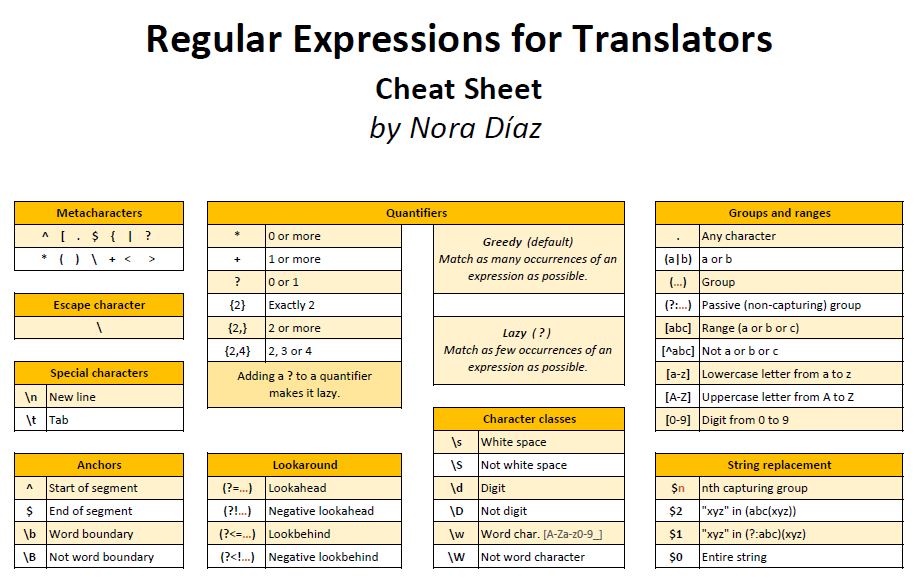
Why is this? Because the display filter has regular expressions enabled by default, and all of these characters have special meanings when creating regular expressions. To learn more about the meaning of each character, have a look at my Regular Expressions for Translators Cheat Sheet.


So, does this mean you can’t use any of these characters in the display filter? Not exactly. All you need to do is “escape” each of these characters whenever you want them to be matched literally. You actually do this by using one of those metacharacters: the backslash.


The screenshot below shows that after escaping the question mark character in the display filter, there is no error message and the filter is properly applied, displaying only the segments that contain a question mark.


Metacharacters that don’t need to be escaped

As you may have inferred from the test above, there are three metacharacters that don’t really need to be escaped: {, < and >. This is because their special meaning only applies when they are used in very specific ways. However, while it may be important for a computer programmer writing code to avoid escaping metacharacters when it's not required, for a linguist looking to quickly filter content while translating, editing or proofreading this is not so critical, so if it’s hard to remember which metacharacters to escape and which not to, simply escape them all.


Final notes 
  • SDL Trados Studio uses the .NET regex flavor
  • While regular expressions are the default for the regular display filter in SDL Trados Studio, they are optional in the Advanced Display Filter and in the Community Advanced Display Filter
  • Escape sequences can be used in Find operations but not in Replace patterns 
  • To match a literal backslash, use another backslash to escape it: \\


 ¡Pregunta por los precios especiales de SDL Trados Studio para México!